
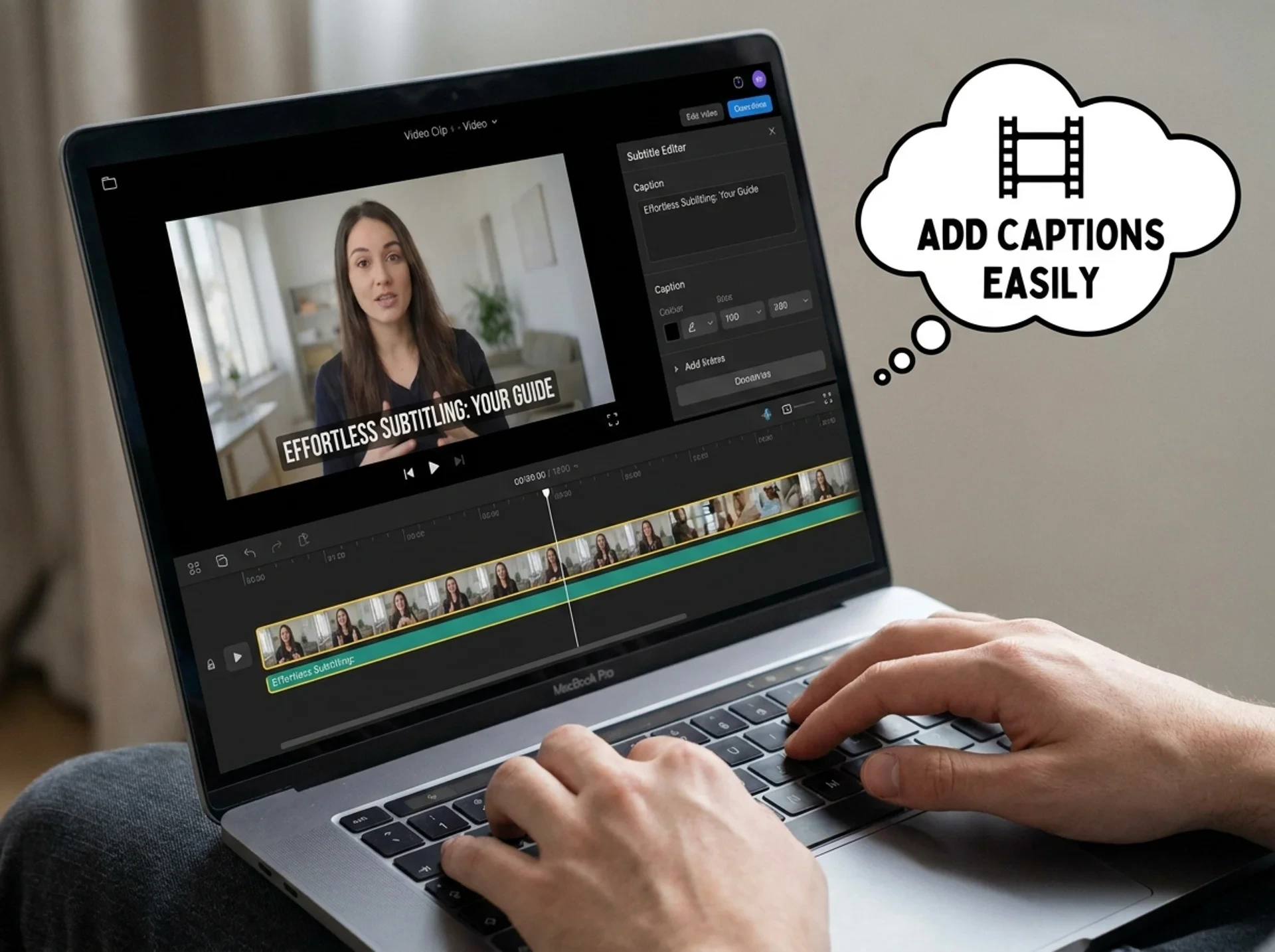
Effortless Subtitling: Your Guide to Adding Captions to Video
Once upon a time, adding subtitles to a video felt like a dark art, reserved for professional studios with specialized equipment and armies of transcribers. Today, thankfully, that's not the case. Whether you're a content creator, an educator, or just someone who wants to make their vacation videos more accessible, getting captions onto your footage is more approachable than ever.
But "approachable" doesn't mean "trivial." There's still a spectrum of approaches, from painstakingly manual to remarkably automated. We'll explore that spectrum, diving into the nitty-gritty of why subtitles matter, how different methods work, and what makes generative AI tools like OmniSubs a game-changer.
Why Even Bother with Subtitles?
This isn't just about compliance or making your content reachable for the hearing impaired, though those are absolutely critical. Subtitles offer a wealth of benefits:
- Accessibility: This is the big one. An estimated 430 million people worldwide have disabling hearing loss. Subtitles ensure your message reaches them.
- Engagement & Retention: Many people watch videos on mute (think public transport, open offices, or just scrolling social media). Subtitles grab attention and keep viewers watching. My personal pet peeve? A perfectly good short-form video that's unintelligible because there are no captions.
- SEO Boost: Search engines can't "watch" your video, but they can read text. The text in your subtitle files (SRT, VTT) provides valuable keywords, making your content more discoverable.
- Language Learning: Subtitles are a fantastic tool for language learners, allowing them to follow along visually while listening.
- Clarity in Noisy Environments: Ever tried to watch a video in a loud coffee shop? Subtitles save the day.
The Old Way: Manual Transcription and Timing
Before the AI revolution, adding subtitles was a labor-intensive process. You'd essentially:
- Transcribe: Listen to every word, type it out. Painful.
- Time: Sync each line of text to the exact moment it's spoken. Even more painful, often involving pausing, rewinding, and fiddling with timestamps.
- Format: Export into a subtitle file format like SRT or VTT.
Tools like Notepad or basic text editors could be used, but dedicated subtitle editors (even free ones like Subtitle Edit or Aegisub) offered better visual waveform displays to assist with timing. It's still a slow process. For a 10-minute video, you might spend several hours just on transcription and timing. Multiply that by multiple languages, and you quickly see why this was cost-prohibitive for many.
Semi-Automated Methods: Editor-Assisted Workflows
Many professional video editing suites, such as Adobe Premiere Pro and DaVinci Resolve, have integrated some form of transcription. They'll often generate an initial transcript, which you then manually review and correct. The timing is usually fairly good, but the corrections can still be extensive, especially with challenging audio or specific terminology.
Here’s how a typical workflow looks:
- Import video: Bring your video file into your NLE (Non-Linear Editor).
- Generate captions: Use the built-in feature to create an initial subtitle track. This might use cloud-based services or local inference models.
- Review and edit: This is where you spend most of your time. Check for misheard words, correct punctuation, adjust line breaks for readability.
- Style (optional): Change fonts, colors, background boxes directly within the editor.
- Export: Typically, you'd export a separate SRT or VTT file, or "burn-in" the subtitles directly into the video (hardcoding). Burning in is great for wide compatibility but makes future edits impossible.
While better than purely manual, these methods still require significant human intervention. The accuracy varies widely based on the underlying speech-to-text engine.
The Modern Approach: Generative AI Subtitling
This is where tools like OmniSubs shine. We've moved beyond simple speech-to-text; we're talking about sophisticated AI models that not only transcribe but also translate, handle complex timing, and offer robust formatting options.
Here's how OmniSubs simplifies the entire process:
1. Upload Your Audio (Not Your Video)
This is a key differentiator for OmniSubs. You don't upload your video file. Ever. Your video stays safely on your device. We only need the audio track.
Why?
- Privacy: This is paramount. Your visual content never leaves your browser. Our system processes audio-only, meaning your sensitive footage isn't transmitted to our servers. This is achieved using browser-side FFmpeg, where the video's audio track is extracted locally, often mounted via
WORKERFSfor efficiency. - Speed: Audio files are much smaller than video files. This means faster uploads, quicker processing, and less bandwidth consumed. We chunk your audio into manageable segments, often downsampled to 32 kbps mono at 16 kHz to minimize file size while retaining excellent speech quality for transcription. This segmentation also helps us avoid timing drift on multi-hour content.
- Resource Efficiency: Processing video takes a lot of computing power. By focusing on audio, we can deliver faster, more cost-effective results.
We support videos up to 10 hours long. For these longer files, our system cleverly segments the audio and processes it in chunks. Each segment's subtitle data includes offset information, ensuring perfect synchronization when reassembled. No more worries about captions lagging behind in the final hour!
2. AI Transcribes and Timestamps
Once your audio is uploaded (and remember, it's just the audio!), our generative AI takes over. We primarily use advanced large language models for transcription, like OpenAI's Whisper, known for its exceptional accuracy across a wide range of languages and accents.
Here's a glimpse under the hood:
- Contextual Understanding: It's not just pattern matching. These models understand context, which dramatically reduces errors.
- Punctuation & Speaker Diarization: Good AI can infer punctuation and, in some cases, even differentiate between multiple speakers (though multi-speaker diarization is still an evolving field).
- Accuracy Gates: We use internal quality filters. For instance, we might apply an
avg_logprobfilter at-1.0to flag low-confidence segments, or acompression_ratiogate at2.4to identify segments that might be garbled (though we skip this on CJK content, where character density is naturally high). If a segment falls below these thresholds, our system can attempt a recovery strategy or flag it for manual review.
3. Translate (73 Languages and Counting)
This is where OmniSubs truly shines for global reach. Beyond transcription, we offer AI translation into 73 target languages, all supported by Whisper.
How we ensure quality:
- Per-Cue Alignment: Translation isn't just a bulk operation. Each subtitle cue is translated individually, maintaining its original timing and context.
- Context-Aware Translation: Our models go beyond literal word-for-word translation. They understand nuances like formal/informal address. For example, in Korean, we can output in
해요체(polite informal); in Japanese,です/ます(polite formal); and in French, Spanish, or Italian, we can often infer and use the appropriate informal register if the source content suggests it. This makes translations feel much more natural. - RECITATION Recovery: If a translation is flagged as low confidence, our system can attempt a "RECITATION recovery," re-evaluating the source context and trying alternative translation pathways.
- Batch Processing: For large projects, we can process batches of up to 400 cues at a time, ensuring consistency and efficiency.
4. Review, Edit, and Export
While AI is incredibly accurate, a quick human review is always a good idea. Our browser-based editor provides a clean interface for any final tweaks.
Once you're satisfied, you can export your subtitles in several popular formats:
- SRT (SubRip): The most common format. Simple text file with timestamps and sequential numbers.
- VTT (WebVTT): Used primarily for web videos (HTML5
<track>element). Supports more styling and positioning options than SRT. - SMI (Synchronized Multimedia Integration Language): Older format, still used by some media players.
Soft-Embedding vs. Hardcoding
You have choices for how subtitles appear with your video:
- Soft-embedding: The subtitle file (SRT, VTT, etc.) is included alongside or within the video container (like MKV or MP4) but isn't permanently burned into the video frames. Viewers can turn them on/off, choose different languages, or even style them in their player (e.g., VLC, Plex). For advanced users, we support soft-embedding into MKV containers with dual-track ASS (Advanced SubStation Alpha) for two-color stacked subtitles, allowing for distinct styles like speaker names in one color and dialogue in another.
- Hardcoding (Burning-in): The subtitles are permanently rendered onto the video frames. They're always visible and can't be turned off. This is suitable for social media platforms that don't support external subtitle files, but it makes future edits impossible without re-rendering the entire video.
5. OmniSubs Browser Extension
For those who want immediate results while browsing, our browser extension is a powerful companion. Imagine watching a Netflix show where the official subtitles are only in English.
With our extension, you can:
- Load Existing Tracks: Upload your own VTT or SRT file directly onto the streaming page.
- AI Translate On-the-Fly: Use our AI to translate the existing loaded subtitle track into any of our 73 supported languages, instantly. This works even on DRM-protected content from services like Netflix, Prime Video, or HBO Max, because we're not touching the video stream itself, only the text data.
Choosing Your Subtitling Path: A Comparison
The best method depends on your needs, budget, and desired level of control.
| Feature / Method | Manual Creation (Text Editor) | NLE-Assisted (Premiere Pro, Resolve) | Generative AI (OmniSubs) |
|---|---|---|---|
| Effort / Time | Extremely High | High | Low |
| Accuracy | 100% (human input) | Good (requires significant correction) | Excellent (minor human review recommended) |
| Cost | Free (your time) | Software license + your time | Credit-based / Subscription (very efficient) |
| Languages | Any (if you speak them) | Limited by software | 73+ target languages, 30 UI languages |
| Video Upload? | No (text only) | Yes (full video) | No (audio only, for privacy & speed) |
| Translation | Manual | Manual (or external tools) | AI-powered, context-aware, 73 languages |
| Styling | Basic (SRT) to Advanced (ASS in Aegisub) | Good, integrated | Basic (SRT, VTT) to Advanced (MKV/ASS soft-embed) |
| Accessibility | Excellent (if done right) | Good | Excellent |
| Long Video Support | Theoretical, but impractical for hours | Good, but heavy processing | Up to 10 hours, chunked processing, no drift |
| Privacy | High (local) | Medium (depends on cloud components) | Very High (audio-only, browser-side FFmpeg) |
FAQ: Your Subtitling Questions Answered
Does OmniSubs work offline?
No, OmniSubs is a browser-based tool that requires an internet connection for processing and translation, as it leverages powerful cloud-based AI models. However, your video never leaves your device.
How accurate are the subtitles generated by OmniSubs?
Our AI models, like Whisper, are highly accurate, often reaching human-level performance in ideal conditions. For clear audio, you can expect accuracy well over 95%. For complex or noisy audio, it will still perform very well, but a quick human review is always recommended for perfection.
What languages does OmniSubs support?
We support transcription in over 100 languages and offer AI translation into 73 target languages. Our UI is also available in 30 languages.
What's the longest video supported by OmniSubs?
OmniSubs can process videos up to 10 hours in length. We achieve this by intelligently chunking the audio for efficient processing and precise timing alignment.
Is there a free option to try OmniSubs?
Yes! New users receive 30 free credits upon signup, which translates to approximately 15 minutes of transcription and translation services. No credit card is required to try us out.
Adding subtitles doesn't have to be a chore anymore. With generative AI tools, the barrier to entry has plummeted, making it easy for anyone to create accessible, engaging, and global content.
Ready to give it a try? Head over to the OmniSubs upload page and experience the future of subtitling.