
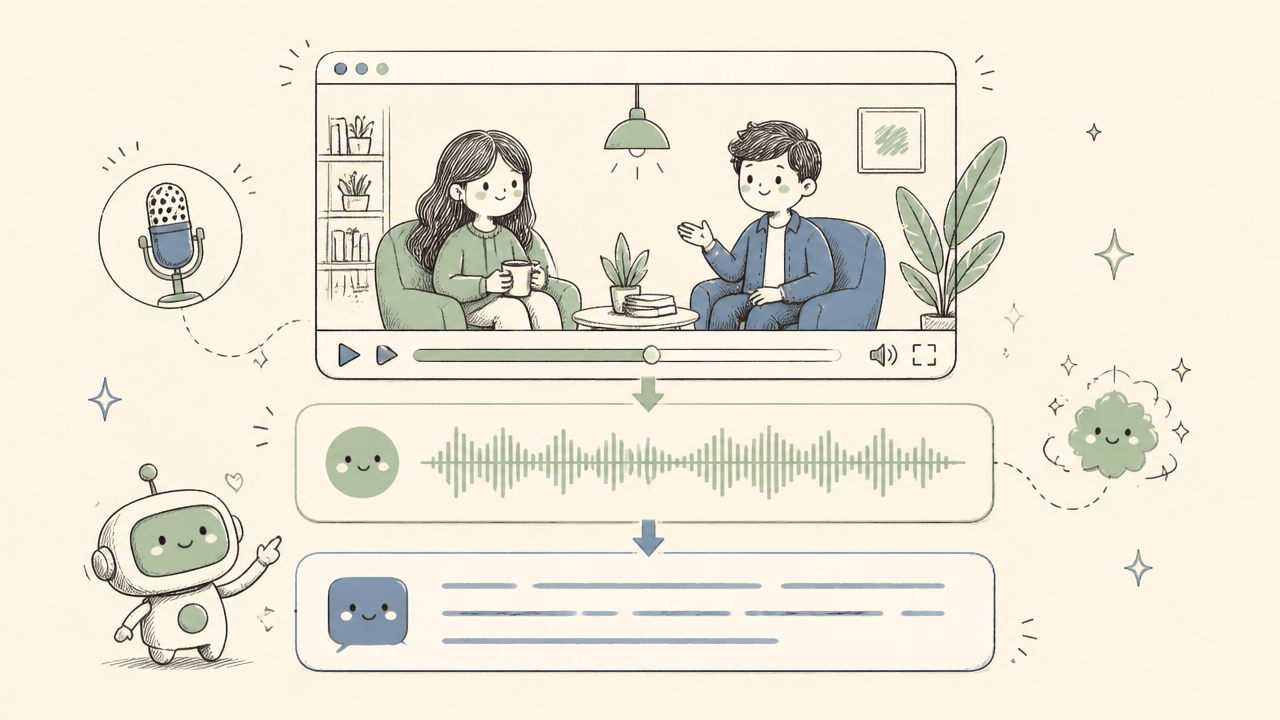
Beyond Playback: Can Your Video Player Generate Subtitles?
It's a common question, and one that often causes a bit of confusion: can a video player make subtitles? The short answer is, generally, no. Your favorite video player — be it VLC, PotPlayer, Plex, or even the built-in media app on your OS — is designed for playback. It's a fantastic tool for rendering video, audio, and yes, displaying subtitle tracks, but it doesn't possess the inherent intelligence or processing power to listen to dialogue and automatically transcribe it into text. That's a whole different beast.
Think of it like this: your car's stereo plays music, but it doesn't compose symphonies. Generating subtitles, especially accurate ones, is a complex process. It involves sophisticated speech-to-text (STT) algorithms, meticulous timing, and often, translation. This is where dedicated tools, like OmniSubs, come into play.
That said, the line has started to blur — and we've spent the last year blurring it ourselves. Consumer hardware got fast enough to run speech recognition locally, which means a player can now do the transcribing, without shipping your video anywhere. We'll come back to that below, because it's the whole reason we built Omni Player.
The Gist: Playback vs. Generation
Let's clarify the distinction.
- Video Players (Playback): These applications are optimized for decoding various video and audio codecs (H.264, HEVC, AC3, AAC, etc.) and presenting them to you. They're excellent at managing streams within containers like MP4, MKV, or AVI. When it comes to subtitles, they read existing subtitle files (SRT, VTT, ASS, etc.) that are either external (sitting alongside your video file) or "soft-embedded" within the video container itself. Some players, like VLC, even have basic functionality to search for existing subtitle files online, but they aren't creating them from scratch.
- Subtitle Generators (Generation): These are specialized platforms or software that analyze the audio track of your video (or an isolated audio file), convert spoken words into text, time-stamp those words, and then export them into a subtitle format. Modern generators use advanced AI models, often powered by deep learning, to achieve remarkable accuracy.
The Technology Under the Hood: How Subtitles Are Born
So, if your video player isn't doing it, what is? The magic happens thanks to advancements in Artificial Intelligence, specifically in the field of Automatic Speech Recognition (ASR).
ASR: The Core Engine
The heart of any automatic subtitle generator is its ASR engine. For years, this was a difficult problem. Early ASR systems were clunky, required specific training, and often struggled with accents, background noise, or multiple speakers.
Then came models like OpenAI's Whisper. This open-source neural network completely changed the game. Whisper was trained on a massive dataset of multilingual audio and text, making it incredibly proficient at transcribing speech in many languages, and even translating it. It doesn't just transcribe; it often understands context better than previous models, leading to fewer bizarre transcriptions.
When you upload a video (or just the audio) to a service like OmniSubs, here's a simplified look at what happens:
- Audio Extraction (or Upload): If you upload a video, the system first extracts the audio track. At OmniSubs, we prioritize your privacy. We never actually upload your video. Instead, using advanced browser-side FFmpeg magic (often leveraging something like
WORKERFSfor temporary, efficient file handling), we extract only the audio right there in your browser. This audio, often chunked into smaller, manageable MP3 segments (typically 32 kbps mono at 16 kHz for efficiency), is then sent to our servers. This keeps your private video content on your device. - Speech-to-Text Transcription: The audio segments are fed into our ASR engine (Whisper, in our case). The engine processes the audio, identifying speech, converting it to text, and assigning initial timestamps. We apply several filters here, like an
avg_logprobgate at-1.0and acompression_ratiogate at2.4(though this one is often skipped for CJK languages where compression ratios behave differently), to ensure quality and filter out low-confidence segments. - Timestamp Alignment: This is crucial. The transcribed text isn't just a block of words; it needs to be perfectly synchronized with the audio. The system refines the initial timestamps, breaking the text into individual subtitle cues (lines or short phrases) and assigning precise start and end times for each. This avoids that annoying drift where the subtitles get progressively out of sync. For multi-hour videos, OmniSubs uses segment CSV offsets to maintain tight alignment across many chunks of audio.
- Formatting and Post-Processing: The raw transcription is then cleaned up. Punctuation is added, capitalization corrected, and speaker differentiation can be attempted (though this is still an active area of research and not always perfect).
- Translation (Optional): If you need subtitles in another language, the transcribed text is then passed to a machine translation engine. We often use advanced models like Gemini for this, which are excellent at maintaining context and nuance. OmniSubs ensures per-cue alignment for translations, and if a translation comes back garbled, it can attempt
RECITATIONrecovery or fall back to a single-cue translation for better accuracy. We also pay attention to register: for Korean, we aim for 해요체; for Japanese, です/ます; and for Romance languages, we typically default to an informal register unless specified. - Export: Finally, the synchronized, formatted, and potentially translated text is exported into a standard subtitle format like SRT, VTT, or SMI. For advanced uses, we even offer soft-embedding options into MKV files with dual-track ASS for two-color stacked subtitles.
Other Tools in the Ecosystem
While dedicated subtitle generators handle the heavy lifting, other software plays a role:
- Video Editing Suites: Tools like Adobe Premiere Pro or DaVinci Resolve have started integrating basic transcription capabilities. These are often handy for rough cuts or short videos, but they usually don't match the speed, accuracy, or multilingual support of specialized AI services. They often require the entire video to be imported, which can be slow and resource-intensive.
- Command-Line Tools (FFmpeg): For the technically inclined, FFmpeg is the Swiss Army knife of media manipulation. You can use it to extract audio (
ffmpeg -i input.mp4 -vn output.mp3) which you then feed into a local Whisper model (if you have the computational power) or upload to a service. FFmpeg is also indispensable for muxing (combining) subtitle tracks back into video containers, e.g.,ffmpeg -i video.mp4 -i subs.srt -map 0 -map 1 -c copy output.mkv. It's powerful, but certainly not a "video player" generating subs.
The Exception: A Player That Does Generate Subtitles
Everything above describes the world as it has been: players play, generators generate, and you move files between them. The reason that split existed was never really conceptual — it was arithmetic. Running a speech-recognition model used to mean a datacentre GPU, so the transcription had to happen somewhere else, which meant your video (or at least its audio) had to travel.
That arithmetic changed. Quantized ASR models now run comfortably on an ordinary desktop, which makes a genuinely different design possible: put the model inside the player, and nothing has to travel at all.
That's Omni Player, the Windows video player we're building. You open a film the way you'd open it in VLC, and if it has no subtitles, Player writes them — from the audio, on your own PC.
What it actually does
- Generates subtitles from the audio, locally. Once the speech-recognition model has downloaded, Player can caption a video that ships with no subtitle track at all. If the file does have embedded or external text subtitles, it uses those instead and skips straight to translating them.
- Three subtitle tracks at once. The original plus up to two translations, stacked together — across 38 supported languages. Handy if you're watching in a language you're learning and want the original in view.
- Translation that follows the story, not just the line. Rather than translating each cue in isolation, Player builds up a picture of who the characters are and how they speak to one another as the film plays, so names and tone stay consistent from the first scene to the last. This is the same context-first idea behind the OmniSubs web app, applied to a two-hour narrative instead of a single clip.
- Your own files and supported links. Local MP4, MKV, AVI and other supported media. Copy a supported video link — YouTube, Vimeo, Dailymotion, direct streams — press Ctrl+V in Player, confirm, and it opens with the same tools. It is not a universal streaming client: site changes, sign-in requirements and DRM can all prevent playback, and it is not a way around access restrictions.
- Per-track styling that stays out of the way. Language-specific fonts, bold, colors, an outside outline, size, background, position and timing — set independently for each track.
- It keeps working while you're not. Subtitle generation, translation and learning preparation continue while playback is paused. Projects save, so you can close a film and pick it up later.
- Learning, if you want it. An optional panel surfaces expressions from the dialogue — vocabulary, idioms, phrasal verbs, sentence patterns, cultural references and more — at your chosen level and in your chosen explanation language, with dictionary pronunciation where available. Afterwards you can practise only the expressions you actually met, in a quiz built from your own session.
What "local" does and doesn't mean
Worth being precise, because "runs locally" gets used loosely. Speech recognition, translation and the learning analysis all run on your machine, so your audio and video don't need to be sent to a cloud AI service. What still needs a connection: downloading the AI models in the first place, playing online video, and activation plus periodic license checks. Local media with downloaded models can play offline.
You'll want a 64-bit Windows 10 or 11 machine. How much memory and CPU/GPU you have decides which models are practical — setup helps you pick a profile, and the larger models want more storage and memory.
It's heading to Kickstarter
Omni Player isn't on sale yet. It's going to Kickstarter, and pricing and trial details will be announced with the campaign. If you'd like the heads-up when it launches — including early-bird offers — you can join the list on the Omni Player page. That's it: launch news and major updates, no ads, unsubscribe whenever.
Why OmniSubs Stands Apart
At OmniSubs, we've designed our service specifically to address the complexities and user needs around subtitle generation.
Key Differentiators:
| Feature | Description |
|---|---|
| Privacy First | Your video never leaves your browser. We extract audio locally using browser-side FFmpeg, then upload only small MP3 chunks. Your visual content remains private and secure on your device. |
| Accuracy & Speed | Powered by Whisper AI with proprietary post-processing and quality gates (avg_logprob, compression_ratio). This ensures high accuracy, even for challenging audio. Our chunking process allows for rapid processing of multi-hour videos. |
| Multi-Language Support | We support transcription and translation into 80 target languages. Our UI is available in 30 languages, making the tool accessible globally. |
| Multi-Hour Video | We handle videos up to 10 hours long. Our intelligent chunking of MP3s at 32 kbps mono 16 kHz and precise segment CSV offsets prevent timing drift, a common issue with long-form content. |
| Advanced Translation | Beyond direct translation, we offer RECITATION recovery and single-cue fallback for problematic translations. We also aim for culturally appropriate register in target languages (e.g., formal/informal distinctions). |
| Flexible Export | Export your subtitles in VTT, SRT, or SMI formats. For those who want more control, we even allow soft-embedding dual-track ASS subtitles into MKV files for custom styling (like two-color stacked subs for language learning). |
| Desktop Apps, Too | The browser runs the web app; two Windows apps cover what a browser tab can't. Omni Player generates and translates subtitles for videos you open yourself, on your own machine. Omni Live captions and translates whatever your PC is playing right now, live. Both keep the AI processing on your computer. |
| Free Tier | Get started with 200 free credits upon signup – no credit card required. That's approximately 100 minutes of transcription and translation to test the waters. It's a great way to see the quality for yourself. |
Which One Should You Actually Use?
Three tools, three different shapes of problem. The quick version:
| If you want to… | Use | Why |
|---|---|---|
| Get a subtitle file out — to edit, publish, or ship with a video | OmniSubs on the web | Runs in any browser on any OS, handles videos up to 10 hours, exports VTT/SRT/SMI. Nothing to install. |
| Watch something on your own drive, with subtitles that don't exist yet | Omni Player | The player writes and translates them as you watch, on your PC. Original plus two translations, and optional learning cards. |
| Caption a live stream, a call, or a video playing in some other app | Omni Live | Listens to your computer's audio and captions it in real time, into two languages at once, entirely on your machine. |
They're separate apps with separate licenses, and they're good at genuinely different things. The web app is still the right answer when what you need is a file.
The Future of Subtitling
The landscape of video and audio content is constantly expanding. From educational lectures to YouTube vlogs, accessibility and global reach are paramount. Relying on manual transcription is slow, expensive, and frankly, a bit of a pain. AI-powered tools are not just a convenience; they're becoming essential.
So — can your video player generate subtitles? If it's VLC, PotPlayer or Plex, still no, and that's fine; they're superb at the job they were built for. But the assumption underneath that answer — that transcription is too heavy to live inside a player — is the part that expired. It was true when a model needed a datacentre. It stopped being true when the same model started fitting on a laptop.
That's the shift worth watching. Not that every player will grow an ASR engine, but that "send your video to someone else's computer" is no longer the price of automatic subtitles. Sometimes you still want a cloud service and a clean exported file — that's what the OmniSubs web app is for. And sometimes you just want to press play and understand what's being said.
Frequently Asked Questions
Does OmniSubs work offline?
No, the OmniSubs web app requires an internet connection to upload the audio chunks to our servers for processing and to download the generated subtitles. The transcription and translation are performed by powerful AI models running on our cloud infrastructure. Our Windows apps are different: Omni Player and Omni Live run their AI models on your own machine, so once the models are downloaded, local playback and captioning can work offline.
How accurate are the subtitles generated by OmniSubs?
OmniSubs uses state-of-the-art AI, including OpenAI's Whisper, combined with our proprietary post-processing and quality filters. This results in very high accuracy, often exceeding 95% for clear audio. Complex audio with heavy background noise or multiple overlapping speakers can be more challenging, but our system handles a wide range of scenarios effectively.
What languages does OmniSubs support?
The web app supports transcription and translation into 80 target languages, and our user interface is available in 30 different languages for a truly global experience. Omni Player supports 38 languages for its on-device translation, and can show the original plus two of them at once.
What's the longest video OmniSubs can process?
OmniSubs can process videos up to 10 hours in length. We achieve this by intelligently chunking the audio into smaller segments, processing them efficiently, and then carefully re-synchronizing the resulting subtitles to avoid any timing drift.
Do I need to upload my full video to OmniSubs?
Absolutely not. For privacy reasons, OmniSubs only extracts and uploads the audio from your video right in your browser. Your video file itself never leaves your device, ensuring your visual content remains private. With Omni Player, not even the audio leaves — the speech model runs on your own PC.
Can Omni Player generate subtitles if my video has none?
Yes. Once the speech-recognition model has been downloaded, Omni Player can generate subtitles from the video's audio. If your file already has embedded or external text subtitles, it uses those and skips the transcription step. Accuracy and processing speed vary with the language, the audio, and your hardware.
Does Omni Player work with every streaming service?
No. Supported public video links and direct streams can be opened in Player, but site changes, sign-in requirements and DRM can prevent playback. Browser integration depends on the site, and Player is not a way to bypass access restrictions.
When can I get Omni Player?
It's heading to Kickstarter, and pricing and trial details will be announced with the campaign. Sign up on the Omni Player page and we'll email you at launch, including early-bird offers — that plus major updates, nothing else.
Ready to see the difference? Try OmniSubs for a subtitle file you can download today, or join the Omni Player list if you'd rather your player did the work.